Mepo5 User Guide › Lesson 4
Getting to know the Editor
The Editor is where you adjust your website. The AI assistant is on the left, the preview page is in the middle, and the right column has the page list, the to-do list before you open for sales, and general settings.
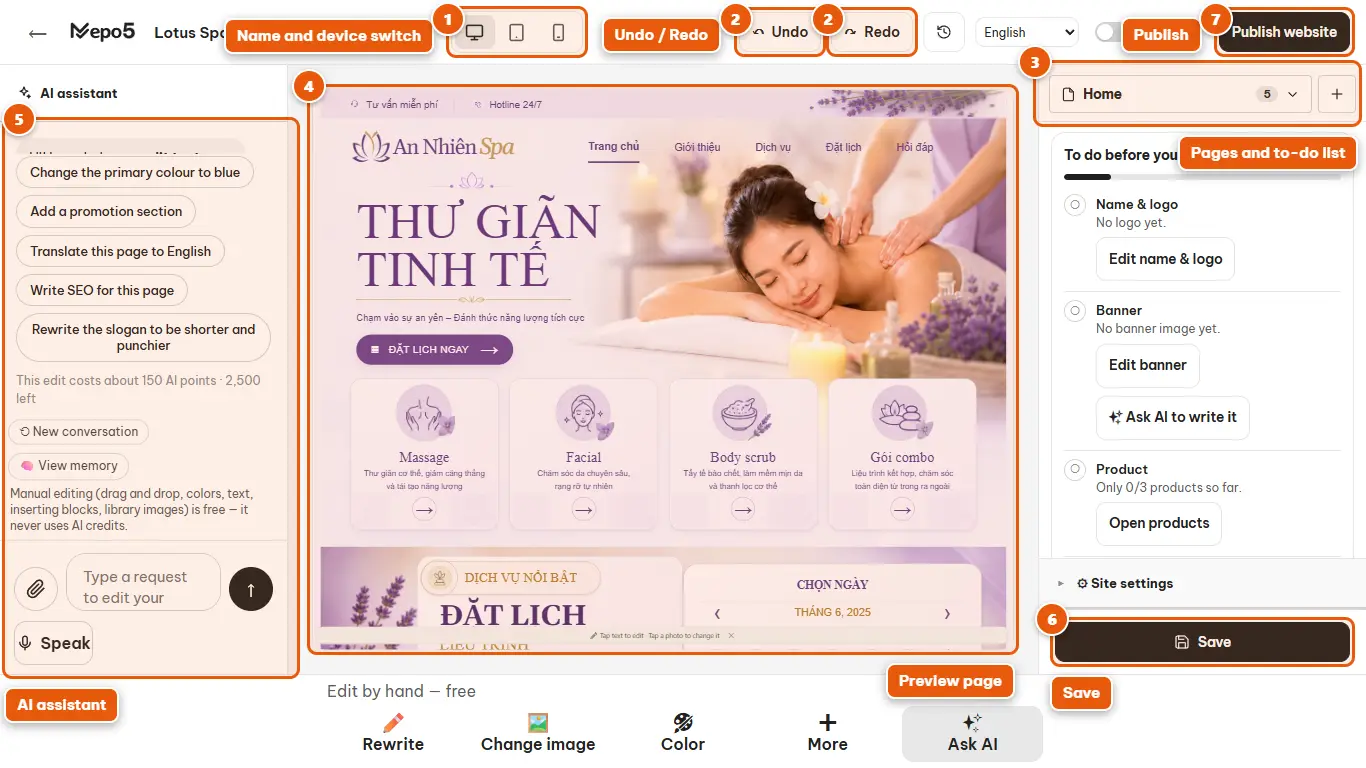
- 1Name and device switch
The “Desktop”, “Tablet” and “Phone” buttons let you view the page on each screen size. Always check the phone version before publishing.
- 2Undo / Redo
Made a mistake? Click the back arrow to undo, or the forward arrow to redo. Shortcuts: Ctrl+Z and Ctrl+Y.
- 3Pages and to-do list
The right column lets you choose the page you are editing (click the plus sign to add a page) and lists what to do before you open for sales.
- 4Preview page
This is your real website. Click directly on text or images to edit them in place.
- 5AI assistant
Type your request in plain sentences here and the AI edits for you (see the next lesson).
- 6Save
Click “Save” to save your changes. The Editor also auto-saves drafts often.
- 7Publish
When you're ready, click “Publish website” to put your website online.