Mepo5 User Guide › Lesson 5
Edit text, images, colors, and add or remove sections
Editing by hand with drag and drop is completely free and uses no AI credits.
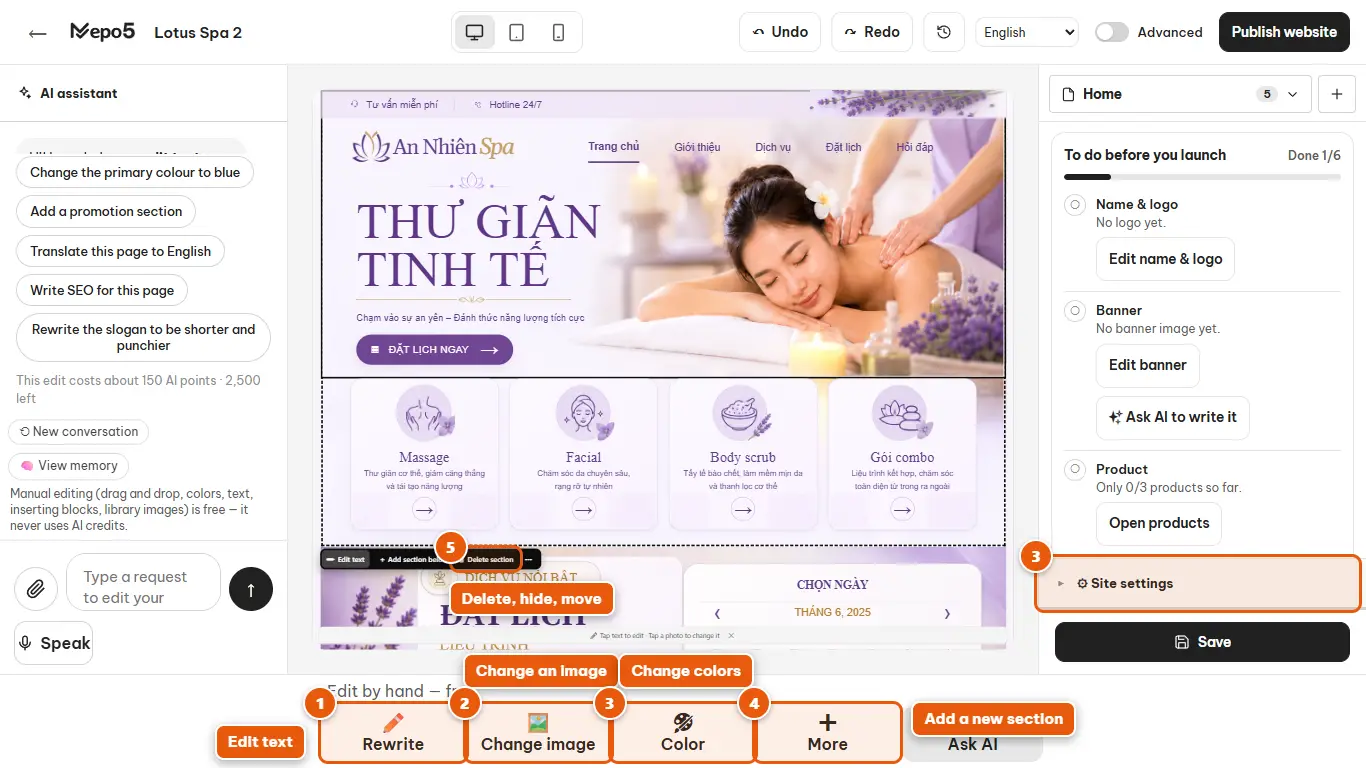
- 1Edit text
Click the text on the page and type directly, or pick the edit text button on the bottom toolbar. Click outside to save.
- 2Change an image
Click an image, or the change image button on the bottom toolbar, to upload your own, choose one from the library or paste an image link.
- 3Change colors
The color button on the toolbar changes the color of what you have selected. To change the whole website, open “⚙ Site settings” in the right column to choose a color palette, fonts and logo.
- 4Add a new section
Click the add button on the toolbar, then choose a ready-made block (banner, products, reviews, contact…).
- 5Delete, hide, move
Click a block on the page to show a floating bar with duplicate, up, down and delete buttons. Made a mistake? Click the undo button on the top bar.