Mepo5 User Guide › Lesson 8
Publish, temporary domain and custom domain
Click Publish and your website goes live right away at a free address. A custom domain (available from the Go plan) is optional.
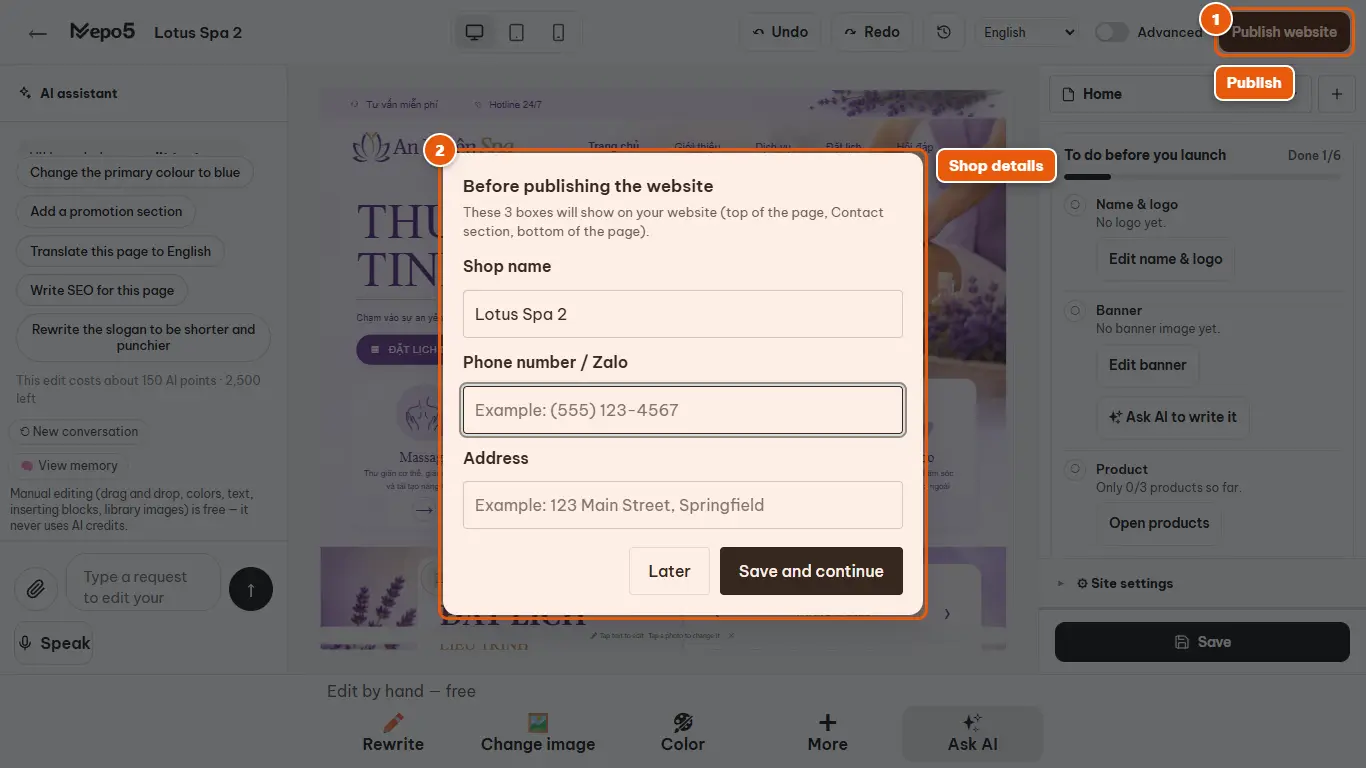
- 1Publish
Click “Publish website” in the top corner. The first time, Mepo5 quickly asks for a few shop details to show on your website.
- 2Shop details
Enter your shop name, phone number (or Zalo) and address, then click “Save and continue”. Mepo5 publishes your website right after.
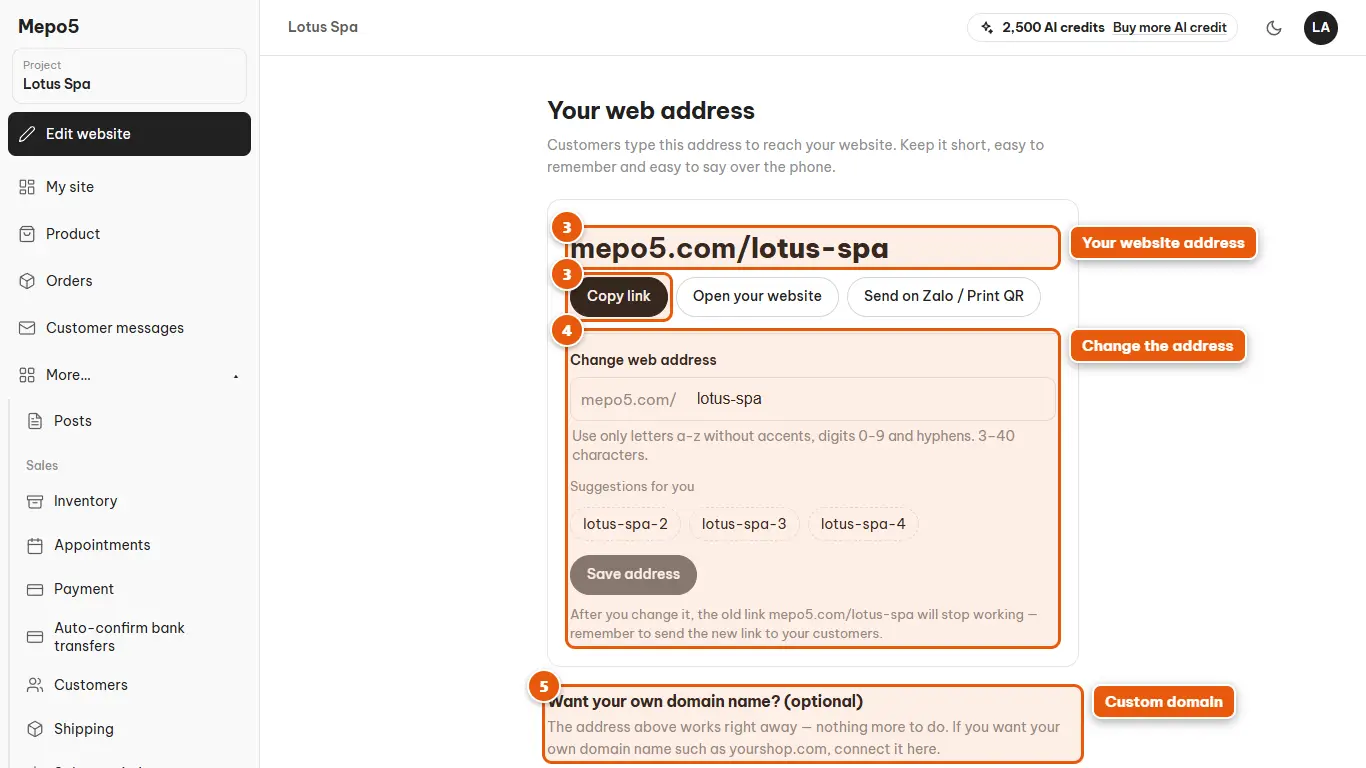
- 3Your website address
After publishing, the “Your web address” page gives you a short link to send to customers. Click “Copy link” to paste it into WhatsApp or Facebook.
- 4Change the address
Want an easier-to-remember link? Enter a new address and click “Save address”. The old link will stop working.
- 5Custom domain
From the Go plan, enter your domain and follow the DNS instructions. Mepo5 checks it and turns on HTTPS automatically.